Run your ERP from Claude or ChatGPT: how to connect ERPoida over MCP
Connect Claude or ChatGPT to ERPoida once, and the chat you already use can read and change your records: real invoices, timesheet entries and deal updates, under your own permissions, with every call logged.
Many teams keep Claude or ChatGPT open all day, and copy things between it and their business software by hand. MCP (Model Context Protocol) removes the copying. ERPoida runs an MCP server; once you connect it, the chat can call ERPoida directly: list records, create a task, start a timer, draft an invoice.
What happens on a call
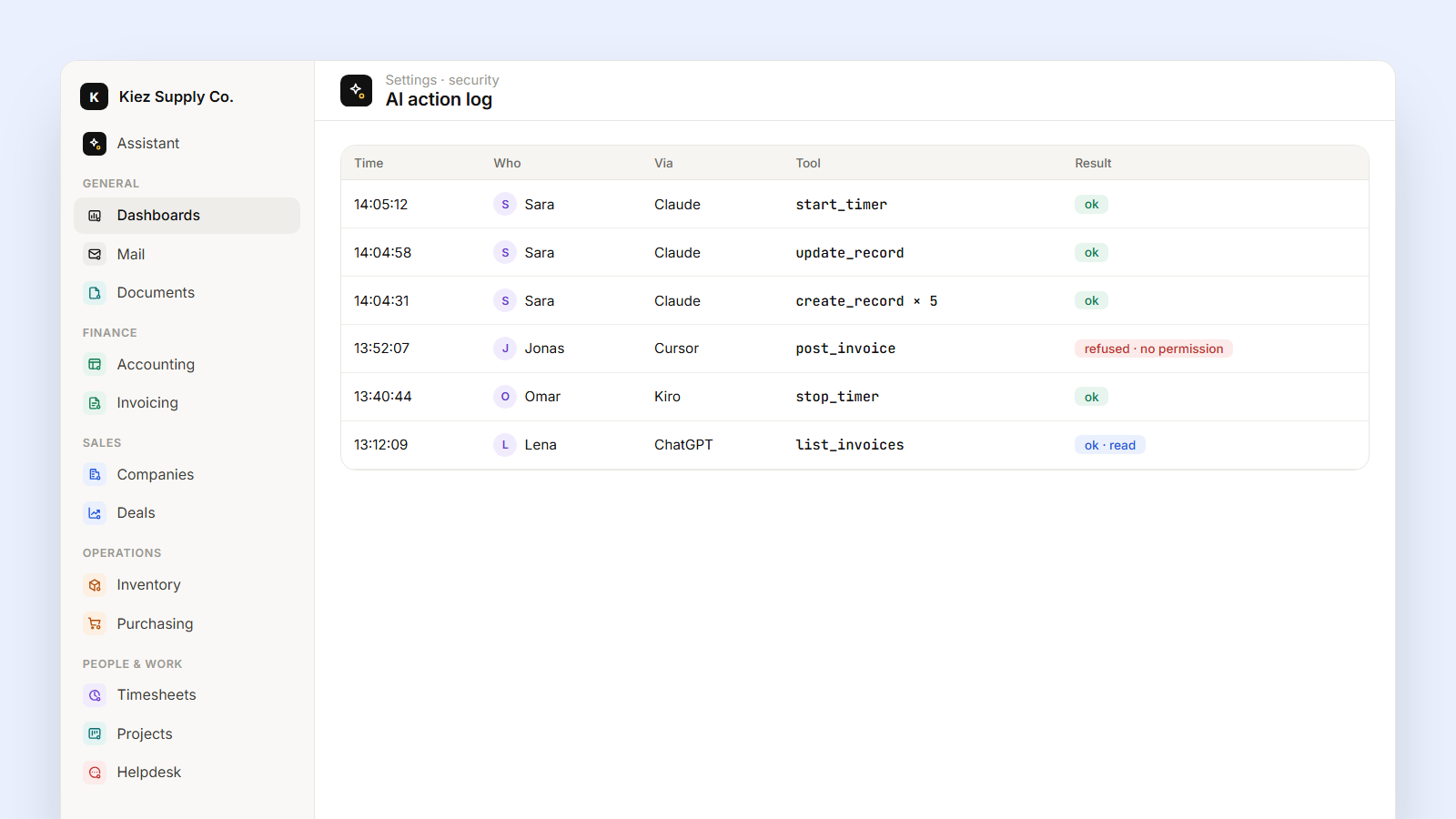
When you ask for something, the model picks one of the tools ERPoida offers (each is marked as read-only or as one that changes data), and calls it as you. ERPoida checks the call against your role exactly like a click in the app. If you can't post invoices, the call is refused, and the model tells you so. Every call, including refused ones, is written to the AI audit log with the arguments and the result.
So there is no separate "AI account" to secure. The permissions you already gave a person are the permissions their chat has.
One example: meeting notes to tasks
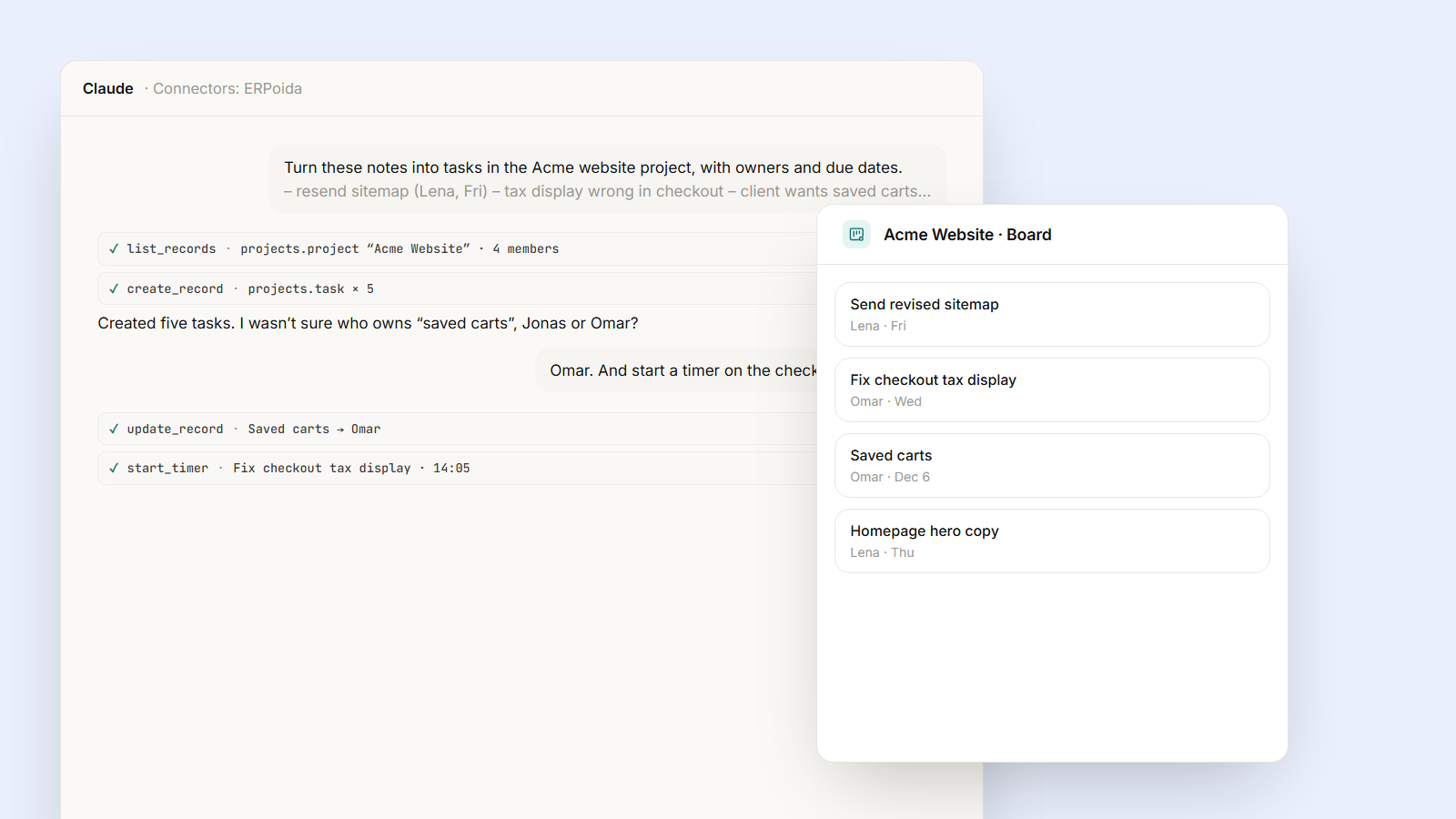
After a client call you paste your notes into Claude and say: "Turn these into tasks in the Acme website project, with owners and due dates."
Claude reads the project's members and existing tasks, then creates five tasks: Send revised sitemap for Lena by Friday, Fix checkout tax display for Omar, and so on. Where an owner isn't clear from the notes, it asks instead of guessing. Each task links back to the project, so the team sees them in ERPoida right away, on the board they already use.
Then: "Start a timer on the checkout one for me." The timer starts on that task. Later, in the same chat: "Invoice Acme for this month's billable hours" creates a draft invoice for you to check and post.
What people use it for
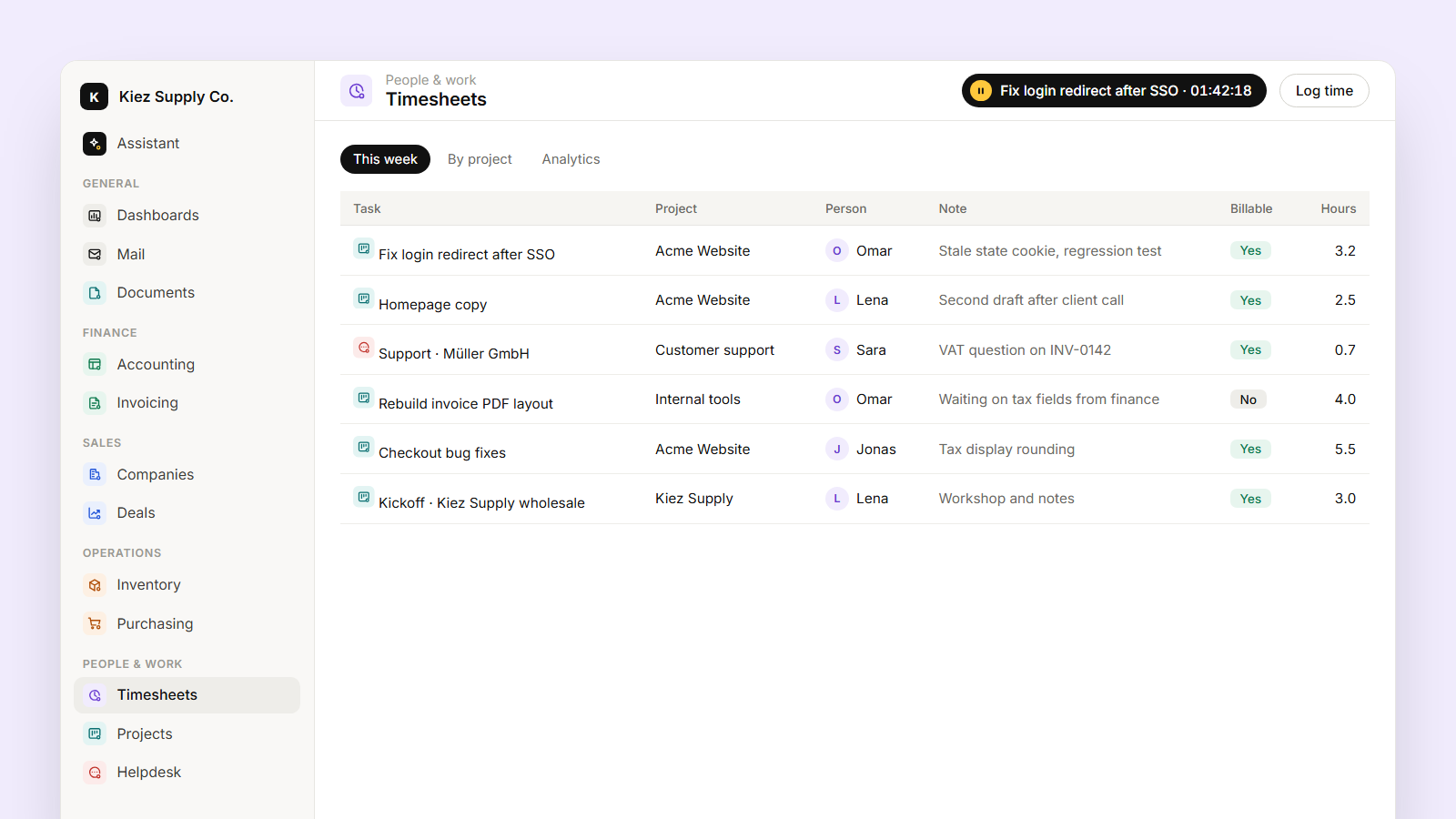
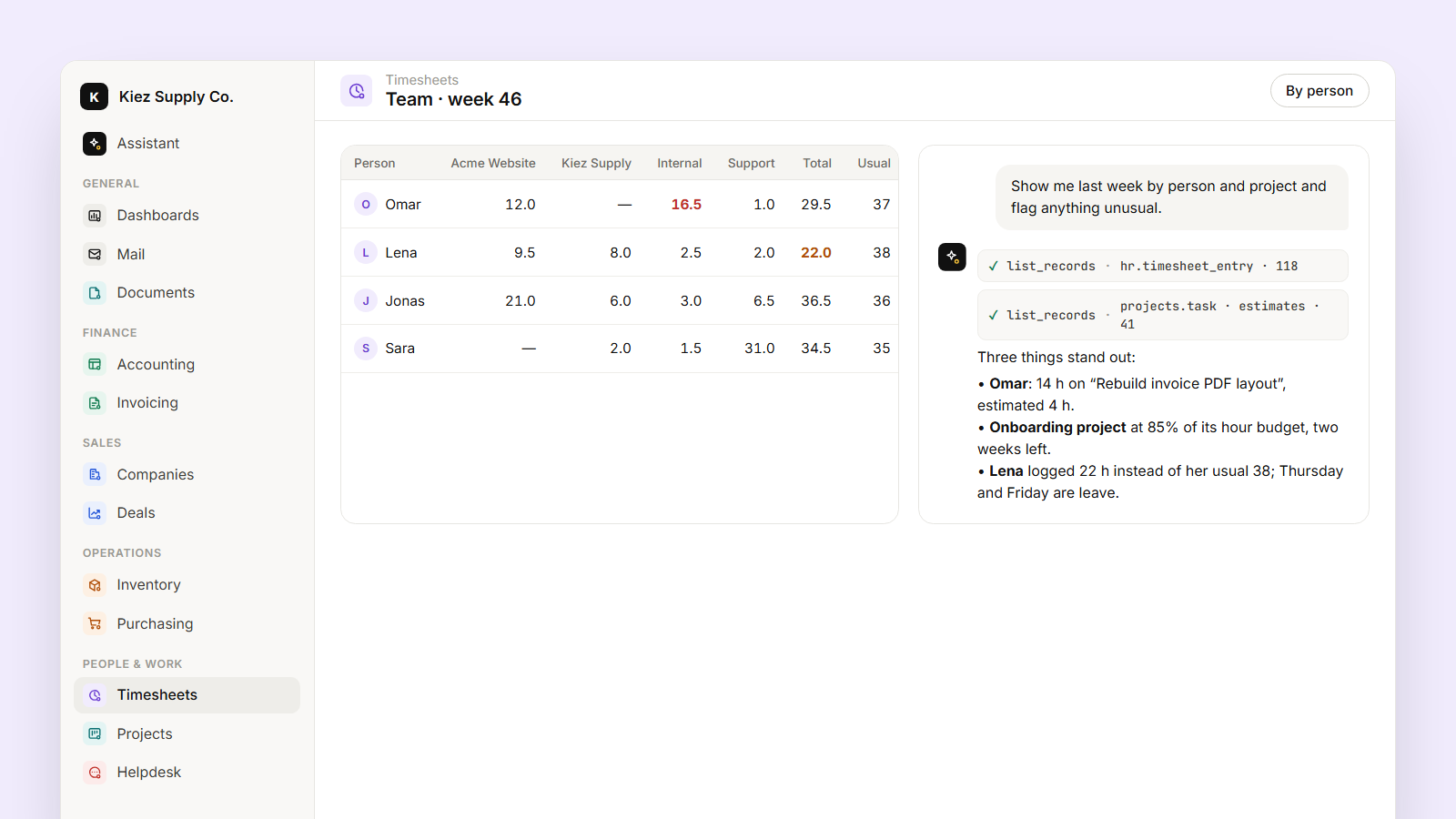
- Your day: "What's on my plate today?" pulls your open tasks, tickets assigned to you, approvals waiting on you and invoices due.
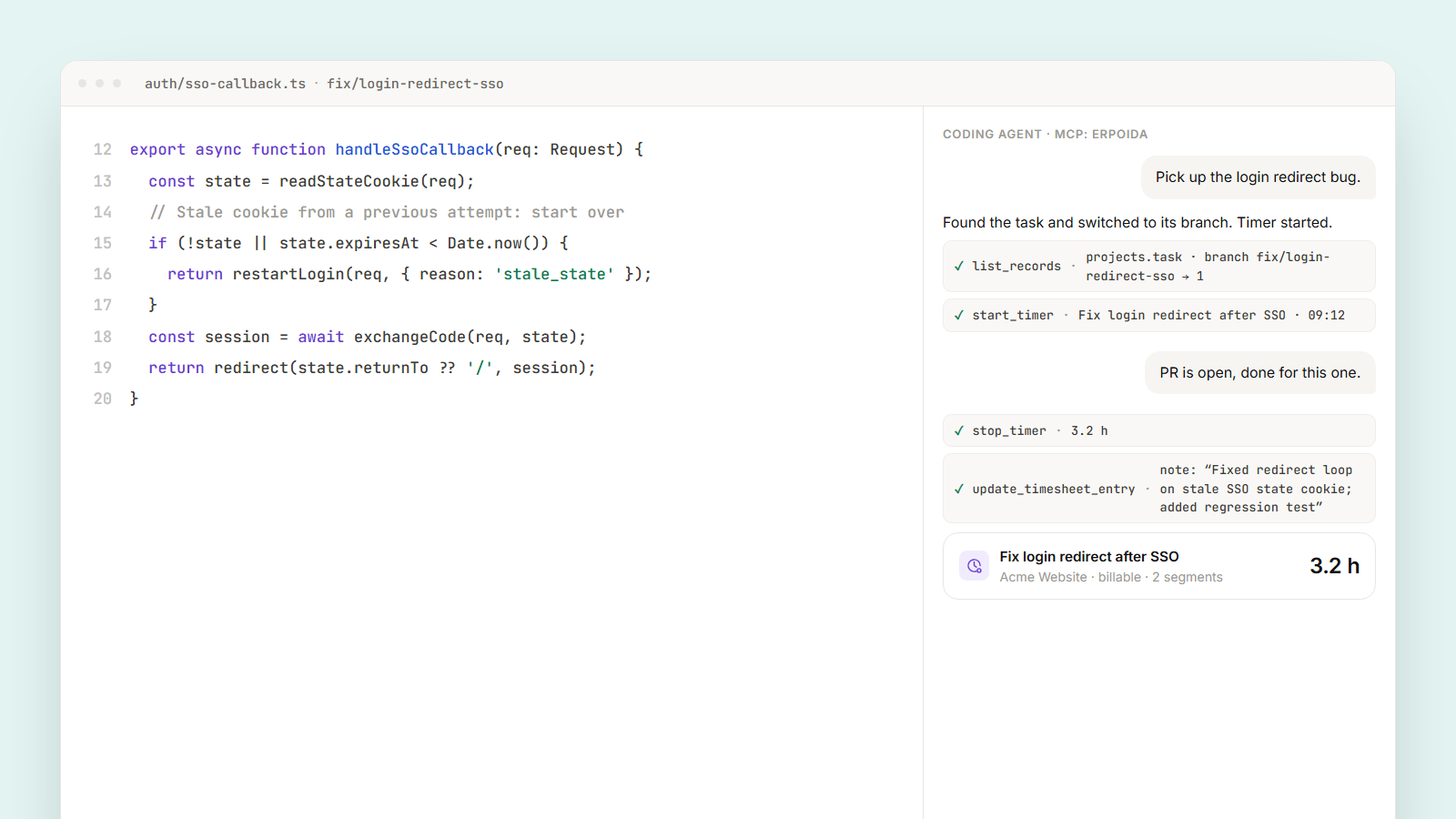
- Time: start, pause and stop timers from wherever you work. Developers do this from the IDE, so time lands on the right task without switching tabs.
- Meetings: "Prepare me for my meeting with Müller GmbH" reads the deal, open invoices, tickets and recent comments, and gives you one page.
How to connect Claude
You need a Claude Pro, Max, Team or Enterprise plan.
- In Claude, open Settings → Connectors and select Add custom connector. On Team or Enterprise, an Owner adds it once under Organization settings → Connectors, and members then connect from their own settings.
- Name it ERPoida and paste the server URL:
https://app.erpoida.com/api/mcp/server - Select Connect, sign in to ERPoida and approve one workspace.
- In a chat, open the + menu, go to Connectors and switch ERPoida on.
Once added on the web, it also works in Claude Desktop and the mobile apps.
How to connect ChatGPT
You need a plan with developer mode for MCP apps, for example Plus, Pro, Business or Enterprise.
- On Business or Enterprise, a workspace admin first allows custom MCP connectors under Workspace settings → Permissions & roles.
- Open Settings → Apps → Advanced settings and turn on developer mode.
- Select Create app, name it ERPoida, paste the server URL and choose OAuth.
- Sign in to ERPoida in the window that opens and approve one workspace.
- In a chat, pick ERPoida from the tools menu.
Menu names in ChatGPT change from time to time. If a step looks different, search the ChatGPT help center for "developer mode".
Before you start
Each connection reaches one workspace, so reconnect if you want to work in another one. Sign-in uses OAuth and you never paste a token into a chat. To remove access, revoke it under Settings → Access tokens in ERPoida or delete the connector in Claude or ChatGPT.
A good first prompt is "What can you do in this workspace?" The assistant lists the apps, objects and actions your role has access to. Once it works, try building a flow by describing it.
The full setup guide is at erpoida.com/help/mcp.