How a team lead reads timesheets: hours, tasks and the reasons in one view
A timesheet report tells a team lead who logged what. It does not say why a task took three times its estimate. In ERPoida the assistant reads the hours together with the task, its comments, emails and history, so you get the reason without interrogating anyone.
Every Monday a team lead does the same exercise. Export last week's timesheets, pivot them by person and project, spot the odd numbers, then go and ask people about them. The asking is the expensive part, and it's awkward: "Why did this take 14 hours?" sounds like an accusation even when it's just a question.
Most of the time, the answer is already written down. It's in a comment on the task ("client changed the layout again"), in the task's history (reassigned twice, moved back from Review to In progress), or in an email thread with the customer. The timesheet just doesn't know about any of it.
In ERPoida it does, because a time entry sits on a task, and the task holds all of that. So the assistant can read hours and context together.
Step 1: the overview
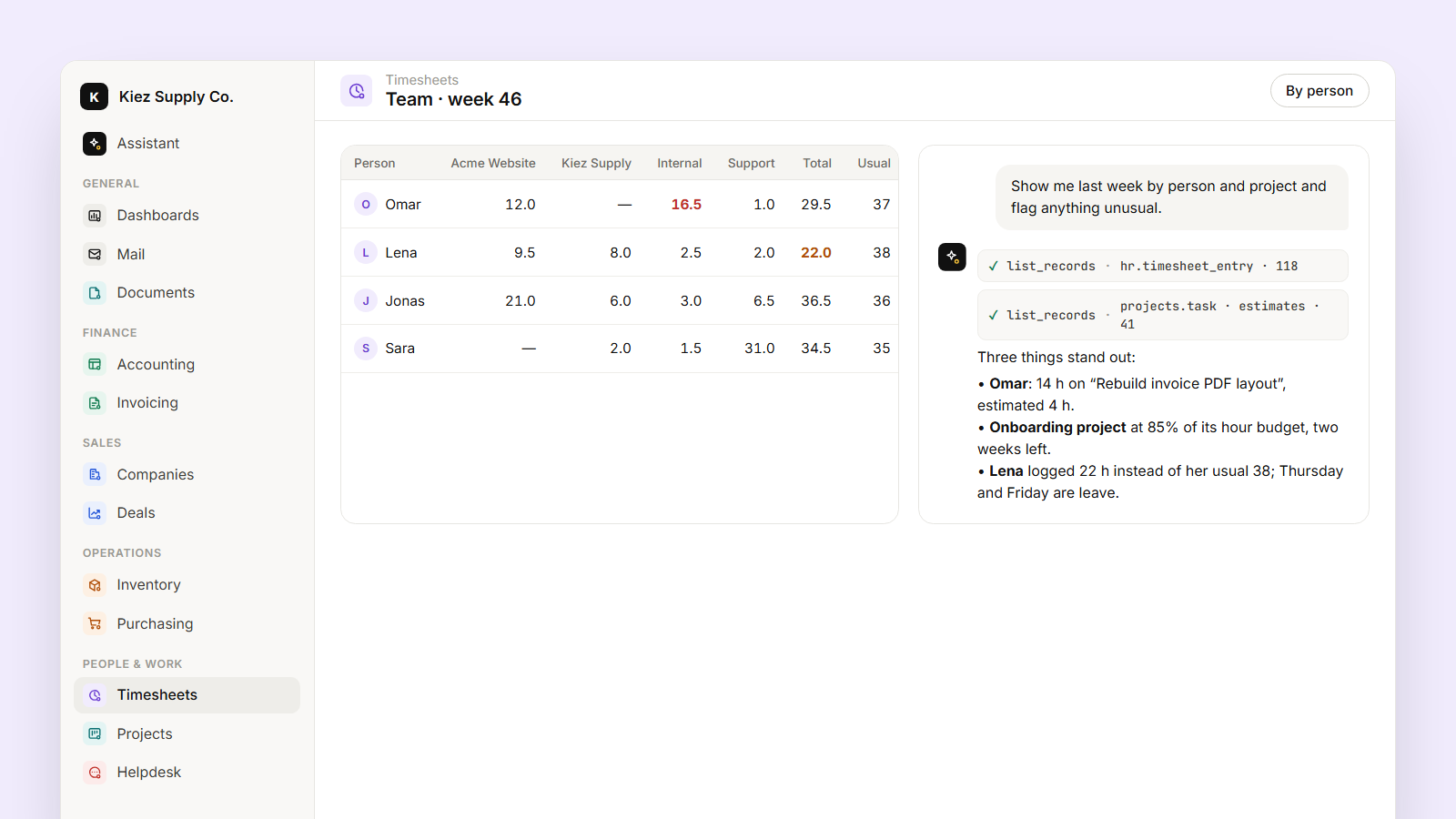
"Show me last week by person and project, and flag anything unusual."
You get hours per person and project, against each person's usual week, and a short list of what stands out: Omar logged 14 h on one task estimated at 4 h; the onboarding project is at 85% of its hour budget with two weeks left; Lena logged 22 h instead of her usual 38. No export, no pivot table, no BI tool. The data is already in one place.
Step 2: ask why, without asking the person
"Why did Rebuild invoice PDF layout take 14 hours?"
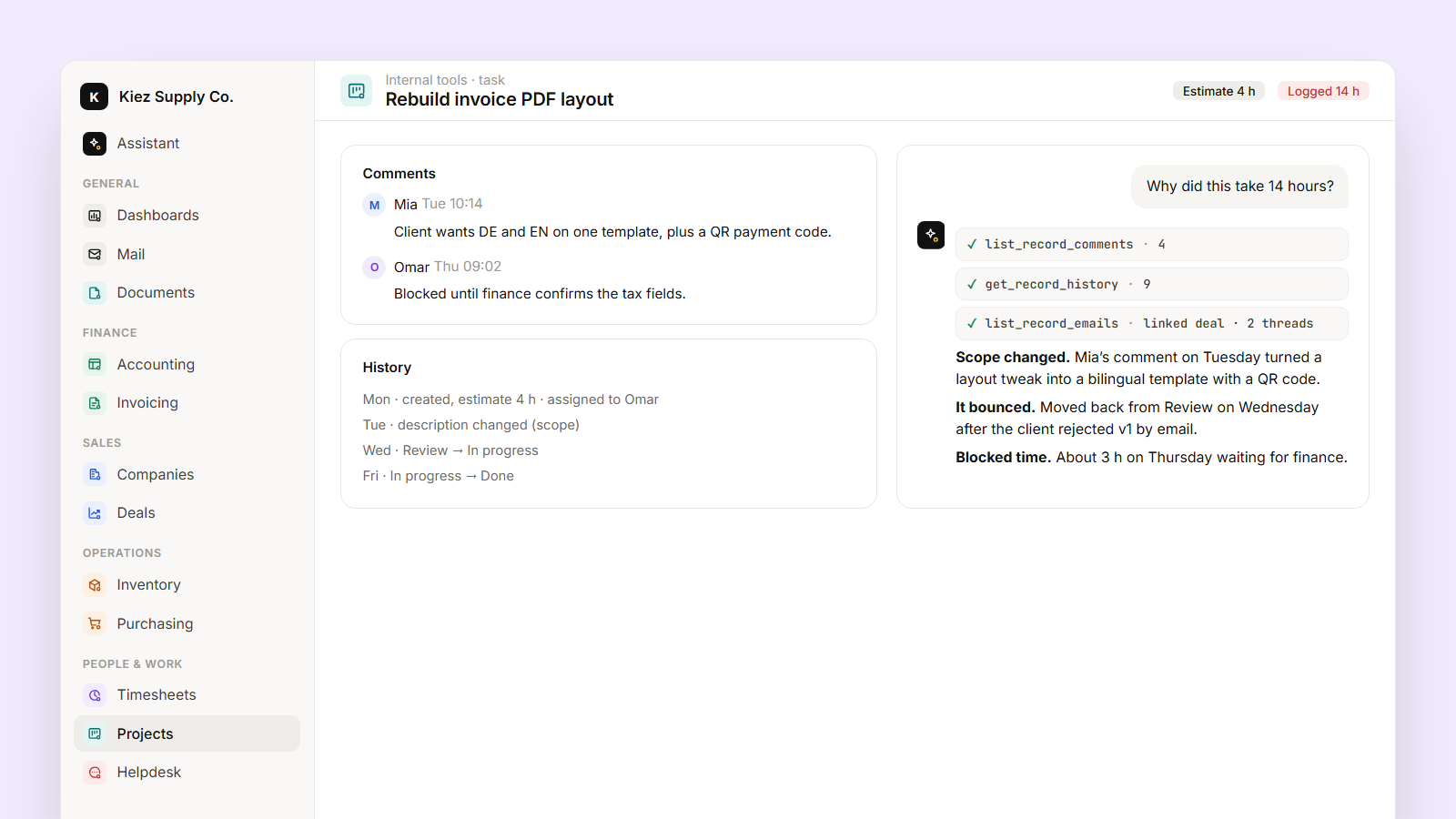
The assistant doesn't guess. It reads the task and comes back with what it found, and where:
- Scope changed. A comment on Tuesday from the account manager: the client wants the German and English invoice on one template, with a QR payment code. The original estimate was for a layout tweak.
- It bounced. The history shows the task moved from Review back to In progress on Wednesday, after the client rejected the first version in an email linked to the deal.
- Blocked time. Omar's entry notes say he waited on the tax-field definitions from finance for most of Thursday morning.
That's a very different conversation from "why so slow?". The estimate was wrong because the scope grew, and the fix is in how the change was handed over, not in Omar's speed.
Step 3: patterns, not one-offs
One long task is noise. The same reason three times is a process problem:
- "Which tasks went more than 50% over estimate this month, and what did they have in common?" might show that most of them had a scope change in the comments after work started.
- "Where did the team wait on someone else?" groups blocked time from entry notes and comments.
- "Who is doing a lot of small interruptions?" finds people whose days are 12 entries of 20 minutes. Often the person everyone asks for help, who needs protecting rather than chasing.
What this is and isn't
The assistant only sees what your role can see. If you can't open a project, it can't read that project for you. It reports what is written down and links each point to the comment, email or history entry it came from, so you can check it. It doesn't score people. The point is to have a better first conversation, one that starts with the facts instead of with the question.
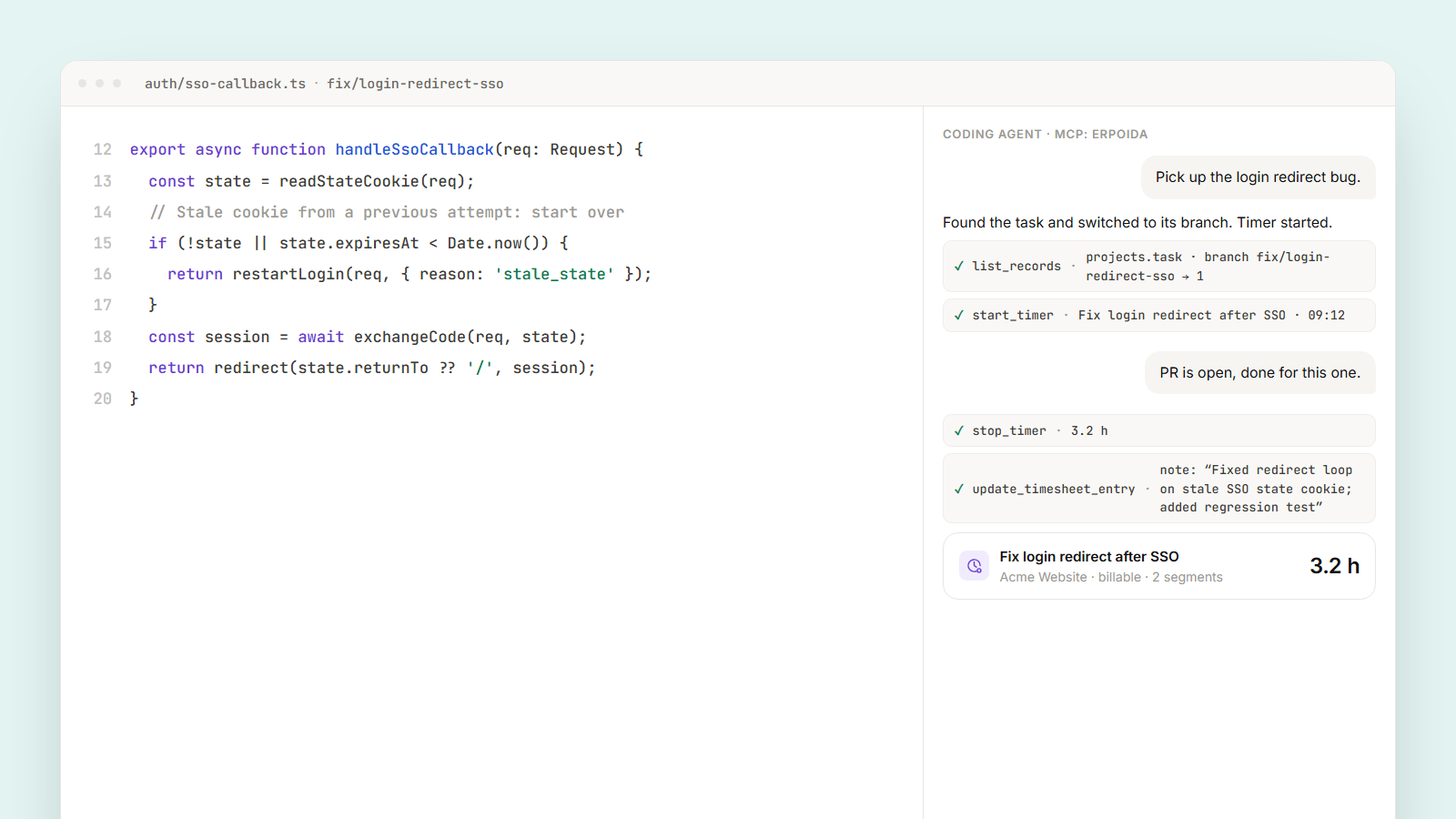
If your team doesn't track time on tasks yet, start with the basics. Developers can do it from the IDE without changing how they work.